Install on Windows
One file. No Docker, no clone, no compiler.
1. Download and run
- Download
tf2ap.exefrom the latest release. - Double-click it. A browser tab opens with the launcher.
Windows will warn you
SmartScreen blocks the first run. Click More info, then Run anyway. Defender sometimes quarantines the file instead. Restore it and add an exclusion.
The warning is a false positive. The launcher unpacks archives, writes DLLs into a game folder, downloads a server and starts it. That is what an installer does, and also what a virus does. The file has no code signature yet, so the scanner cannot tell the difference. See Code signing policy.
To check the file yourself:
- Compare
Get-FileHash tf2ap.exe -Algorithm SHA256withSHA256SUMSon the release page. - Open the VirusTotal report linked on the release page.
- Run
gh attestation verify tf2ap.exe --repo m-this/tf2-archipelago.
2. Press Start
The first start installs SteamCMD, the TF2 dedicated server, SourceMod, the plugin and the bots. It downloads about 14 GB, so it takes a while. Every later start takes seconds.
You do not need a room address yet. Without one the server runs, and the Play tab says it is waiting for a room.
3. Create the session
The launcher runs the game server. The Archipelago session is separate, and the official Archipelago app generates the seed.
- Install the Archipelago app. The launcher finds it in the usual places.
- Open Settings, then Player options. Choose the run options.
- Press Generate seed. The launcher writes the player file, runs the generator and opens the folder with the result.
- Upload that file at archipelago.gg/uploads and click Create New Room.
- Copy the room address, like
archipelago.gg:12345, into Settings, then Archipelago room. Save, then press Restart.
Create the session explains each step, and what to do if Generate seed cannot find the Archipelago app.
4. Invite your friends
The Join line under the buttons shows the connect line to give out. By default the server is reachable from your local network only. To let friends join over the internet, see Invite your friends.
The screen
| Tab | What is on it |
|---|---|
| Play | The connect line, the unlocked classes, the bot team, the missions of the run, and the log with an rcon box. Play on a mission row loads it. |
| Unlocks | Everything the multiworld has handed your server. |
| Bots | The RED team: which class each seat plays and what it carries. Apply changes the team without ending the mission. |
| Settings | The run options, the room, the missions, the bots, the network. |
Start, Stop, Restart and Quit are at the top of every tab. Closing the browser tab leaves the server running. Quit stops it.
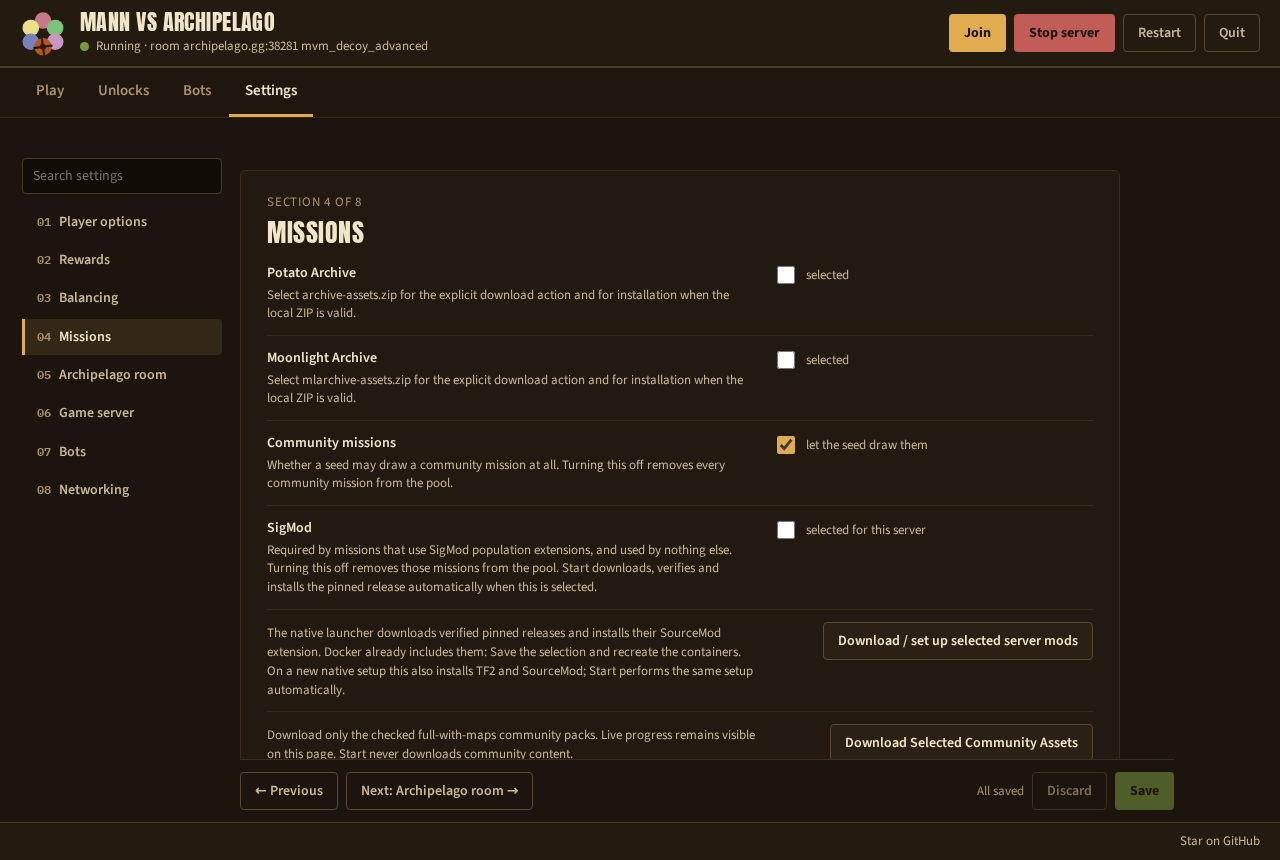
The launcher, tab by tab walks through every screen.
Three buttons in Settings help when something is wrong:
- Debug logs writes one file with the launcher log, the server console and your settings, without passwords. Send it when you ask for help.
- Repair reinstalls the mods. It keeps the game files and the run.
- Reset settings puts every setting back to the defaults. It keeps the game files.
Try it without Archipelago
Test mode, in Settings, then Archipelago room, runs a multiworld of one on your machine. No room, no seed, nothing leaves your computer. Use it to try the server out.
Reference
Command line
Double-clicking the exe opens the browser. From a terminal:
| Command | What it does |
|---|---|
tf2ap.exe |
Serve the interface and open a browser on it |
tf2ap.exe -room <host:port> |
Set the room address first |
tf2ap.exe -no-browser |
Print the address instead of opening a browser |
tf2ap.exe -addr 127.0.0.1:8080 |
Serve on a fixed address |
tf2ap.exe -console |
Print the log and nothing else |
tf2ap.exe -configure |
Edit every setting in the terminal, then exit |
tf2ap.exe -install |
Install or repair the server, then exit |
tf2ap.exe -status |
Show the settings and the install state |
tf2ap.exe -yaml <path> |
Write the Archipelago player file, then exit |
tf2ap.exe -env |
List the environment variables it reads, then exit |
tf2ap.exe -version |
Print the version and the pinned tool versions |
Environment variables
Every setting also reads an environment variable, with the names in Run options. A variable wins over the saved settings for that run:
set AP_ROOM=archipelago.gg:12345
set SRCDS_BOT_TEAM_SIZE=4
tf2ap.exe
Where it keeps things
| Path | Holds |
|---|---|
%USERPROFILE%\tf2-archipelago\ |
The game files, SourceMod and SteamCMD |
%USERPROFILE%\tf2-archipelago\tf2.yaml |
The player file |
%USERPROFILE%\tf2-archipelago\bridge-state\ |
The checks and unlocks of the run |
%APPDATA%\tf2ap\config.json |
Your settings |
%LOCALAPPDATA%\Programs\Archipelago\ |
The Archipelago app, if installed there |
Install folder, in Settings, then Player options, moves the first three to another disk.
Next: Create the session.