The launcher, tab by tab
The launcher is one page in your browser. It has a header, four tabs, and eight settings pages. This page walks through all of them. The pictures come from a test run, so the names and numbers are examples.
The header
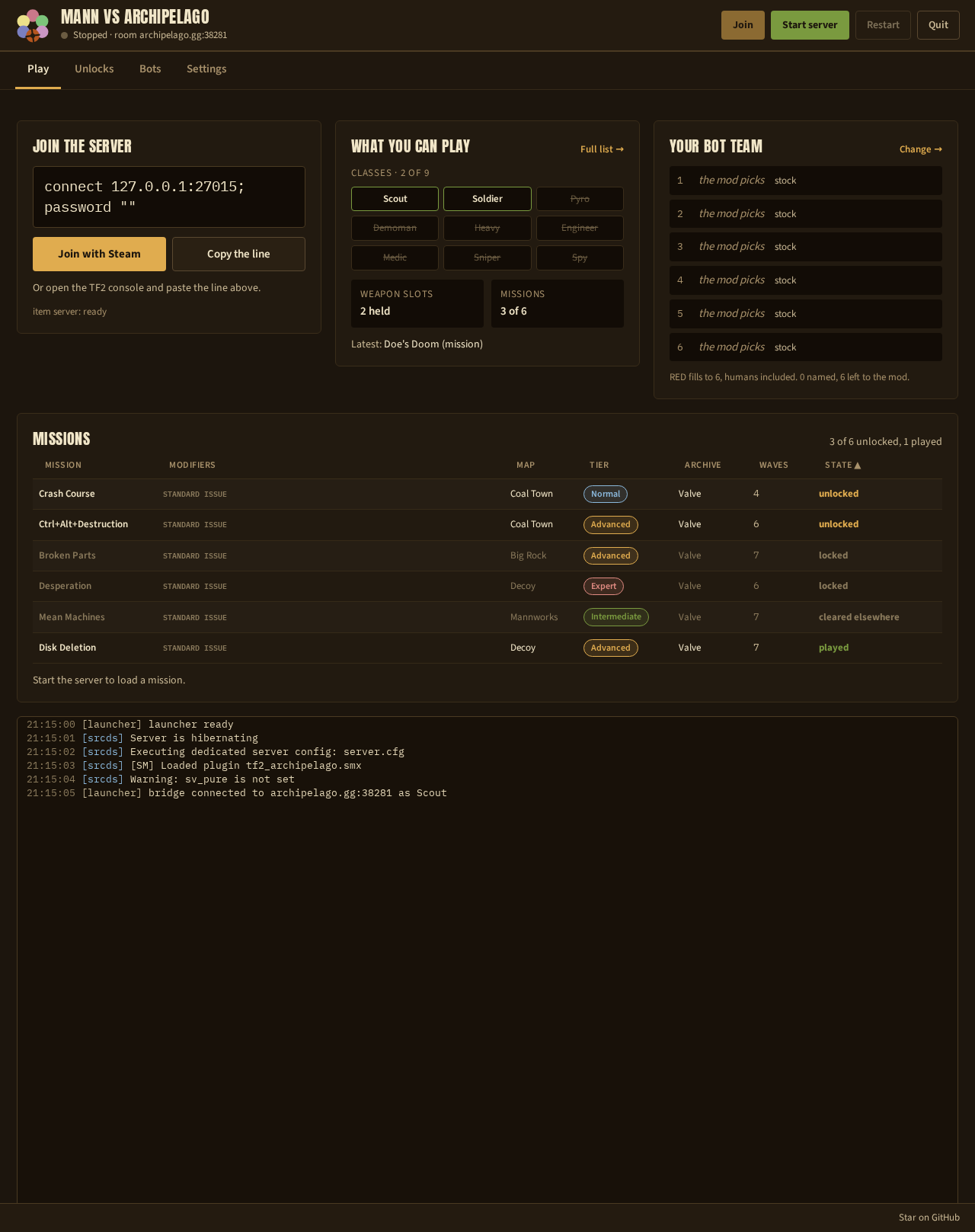
The header is on every tab.
- The status line, under the title:
StoppedorRunning, the room address, and the mission the server is on. - Join starts Team Fortress 2 and joins this server.
- Start server installs whatever is missing, then starts the server. While the server runs, the button reads Stop server.
- Restart stops and starts the server. Use it after you change a setting that the running server cannot pick up.
- Quit stops the server and closes the launcher. Closing the browser tab does not.
The Play tab
This is where you spend the evening. It has four panels and the log.
Join the server
The connect line to give your friends, with the server password if you set one. Join with Steam starts the game on this machine and joins. Copy the line puts the line on the clipboard.
item server: ready under the buttons means the game server answers. See
Invite your friends for what the line shows when
friends join from the internet.
What you can play
The state of the run right now:
- the nine classes, with the locked ones crossed out,
- how many weapon slots the run holds,
- how many missions are unlocked,
- the last item the run received.
Full list opens the Unlocks tab.
Your bot team
The six seats on RED, with the class and the loadout of each. Change opens the Bots tab.
Missions
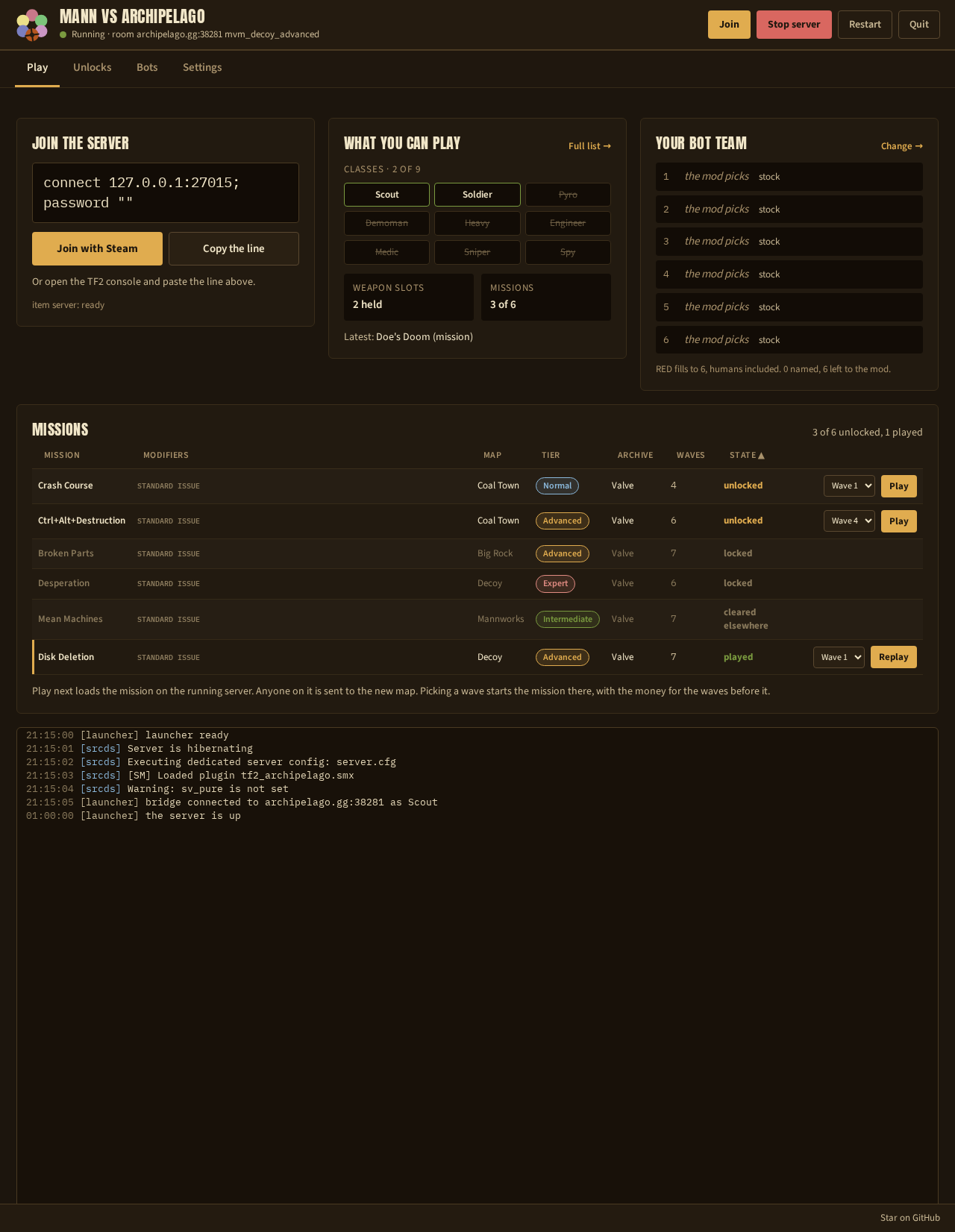
One row per mission of the run, with its map, its tier, its wave count and its state:
| State | Meaning |
|---|---|
| unlocked | The run holds the ticket. You can play it. |
| locked | The ticket is still somewhere in the multiworld. |
| played | Your team cleared it. |
| cleared elsewhere | Another player's release marked it cleared. |
While the server runs, an unlocked mission has a wave menu and a Play button. Play loads that mission on the running server. Anybody on the server is sent to the new map. Picking a wave starts the mission there, with the money of the waves before it. Replay does the same for a mission the team already cleared.
The Modifiers column shows the modifiers the seed gave the mission, when Mission modifiers is on.
The log
Everything the launcher, the game server and the bridge print, with a time stamp and the source in brackets.
- The rcon box at the bottom sends a command to the game server. Press Enter. The up arrow walks your history. See Chat commands.
- Follow the newest lines keeps the log scrolled to the bottom.
- Filter the log shows only the lines that contain what you type.
- Save debug logs downloads one zip with the log, your settings without passwords, and the player file. Send it when you ask for help.
- Clear this view empties the screen. The file on disk keeps everything.
The Unlocks tab
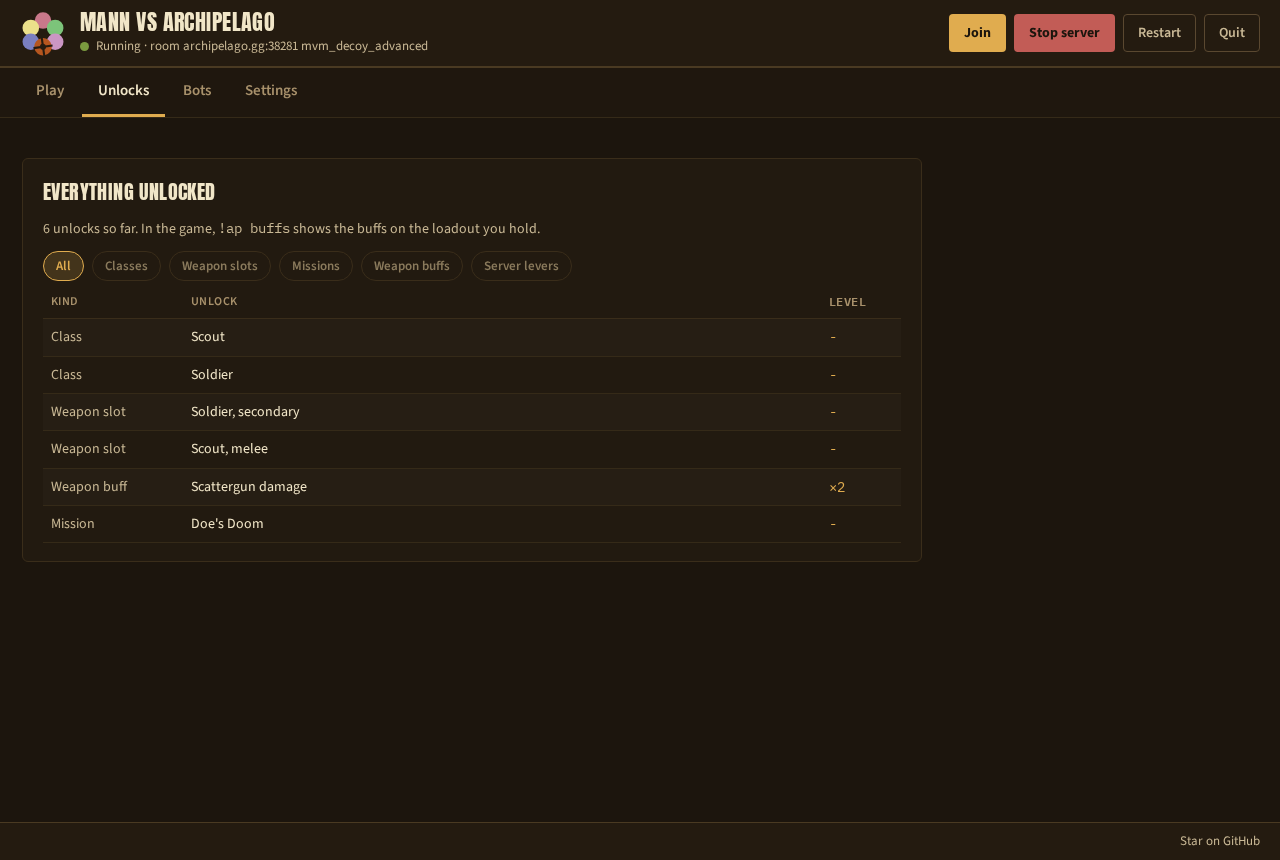
Everything the multiworld has handed your server, in one table. The buttons above it filter by kind: classes, weapon slots, missions, weapon buffs and server levers. The Level column shows how many times a buff stacked.
Players see the same list in the game with !ap status, and the buffs on
their own loadout with !ap_buffs.
The Bots tab
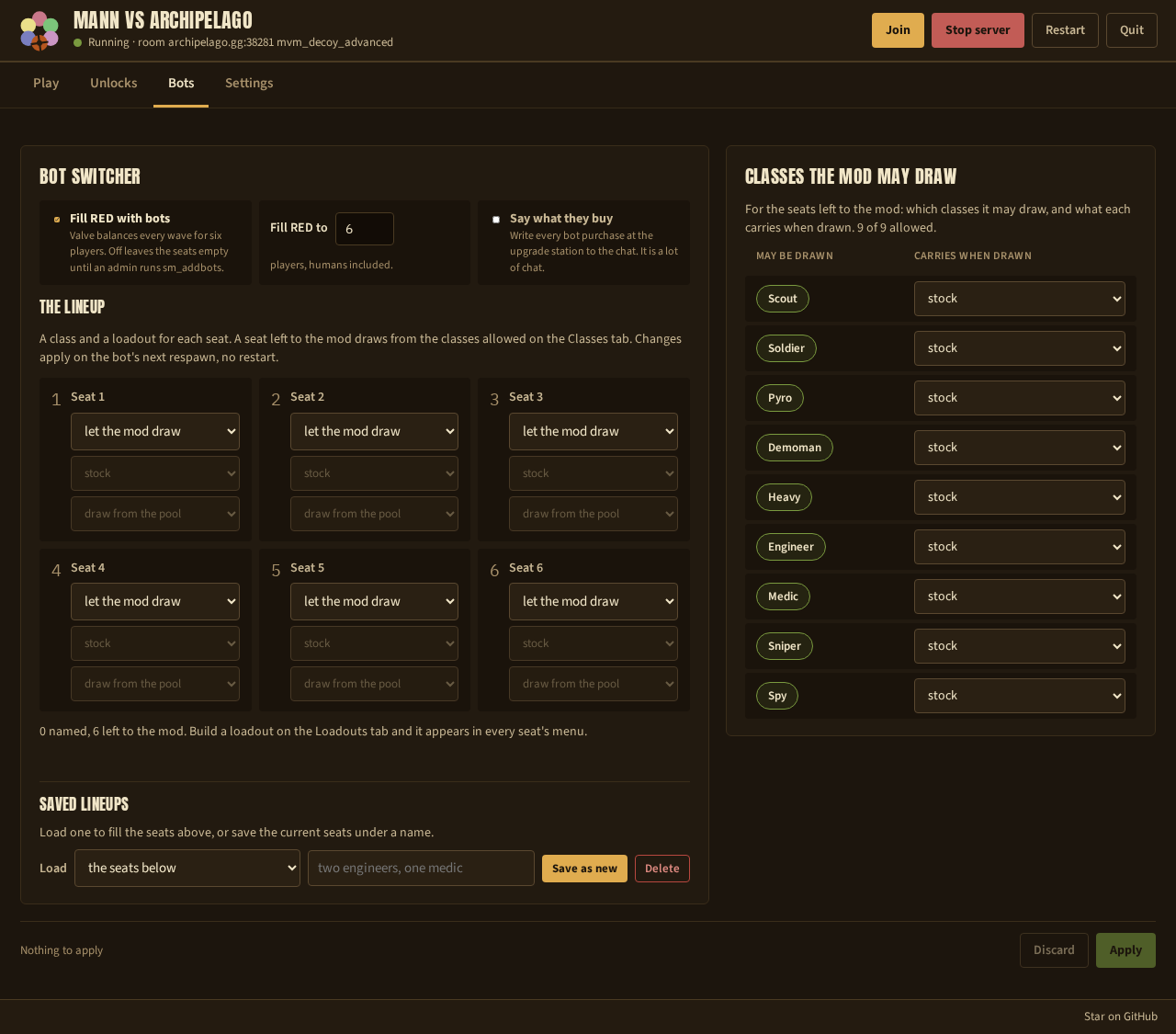
The bot team, and the only tab where a change reaches the running server without a restart.
- Fill RED with bots turns the bots on or off.
- Fill RED to is the team size, humans included.
- Say what they buy writes every bot purchase to the chat.
- The lineup has one card per seat with three menus: the class, the loadout, and the name. A seat left to let the mod draw takes a class from the list on the right.
- Saved lineups loads a team you saved, or saves the current seats under a name.
- Classes the mod may draw is the list on the right. The mod picks from it for the seats you did not name. It also says what a bot of each class carries.
Press Apply to send the change to the server. The mod replaces only the seats whose class changed, at the next break between waves. Discard drops your edits.
See The bots on your team for what the bots do.
The Settings tab
The settings are eight pages. The list on the left moves between them, and Search settings finds a row by its name on any page.
Every page has the same footer:
- Previous and Next walk the pages in order.
- Discard drops the edits on every page.
- Save writes them. The label between the buttons says whether anything is unsaved.
A saved change that the running server cannot pick up shows a notice with a Restart to apply button. Restart when your players are between waves.
1. Player options
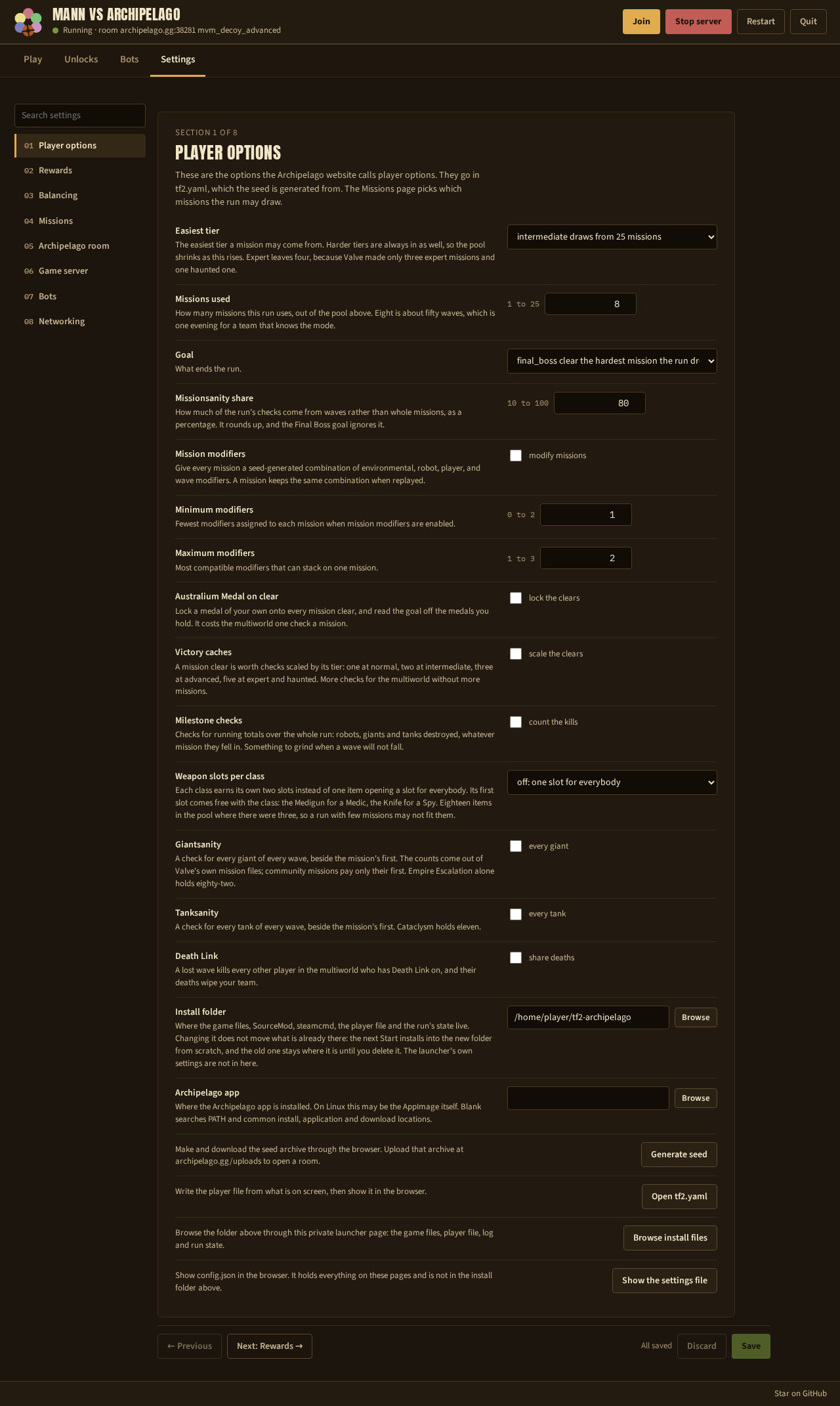
The options of the Archipelago seed. They go into tf2.yaml, and
Generate seed builds the seed from them. Every row is explained in
Run options.
The bottom of the page has the folders and the actions:
- Install folder is where the game files live. Change it to use another disk. The next Start installs there from scratch.
- Archipelago app is where the Archipelago app is installed. Leave it blank and the launcher searches the usual places.
- Generate seed writes the player file, runs the Archipelago generator, and hands you the archive to upload. See Create the session.
- Open tf2.yaml shows the player file as the launcher writes it.
- Browse install files opens the install folder in the browser.
- Show the settings file opens
config.json, which holds everything on these pages.
2. Rewards
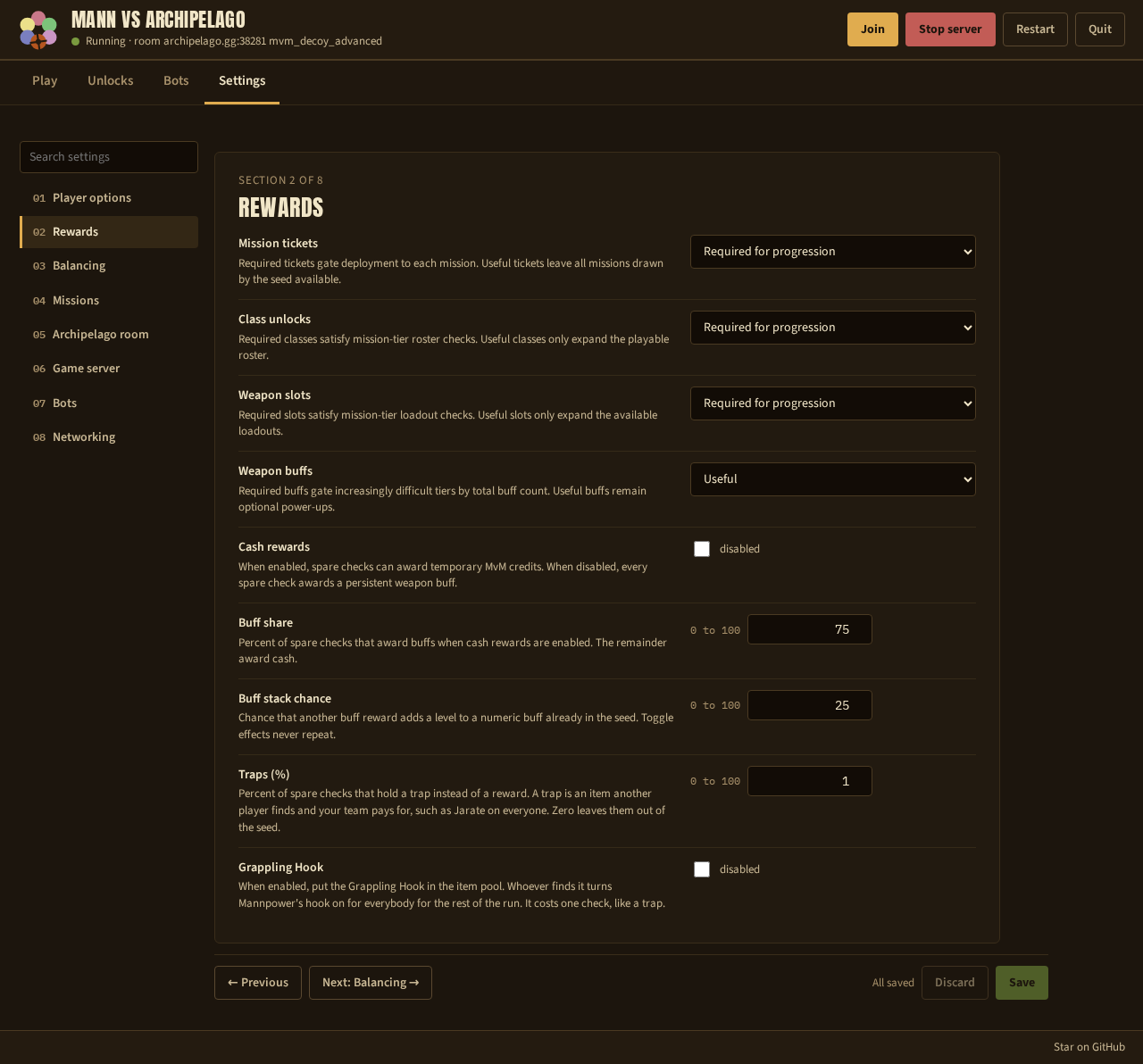
What fills the checks left after the classes, the slots and the tickets, and which items can gate progress. See Run options.
3. Balancing
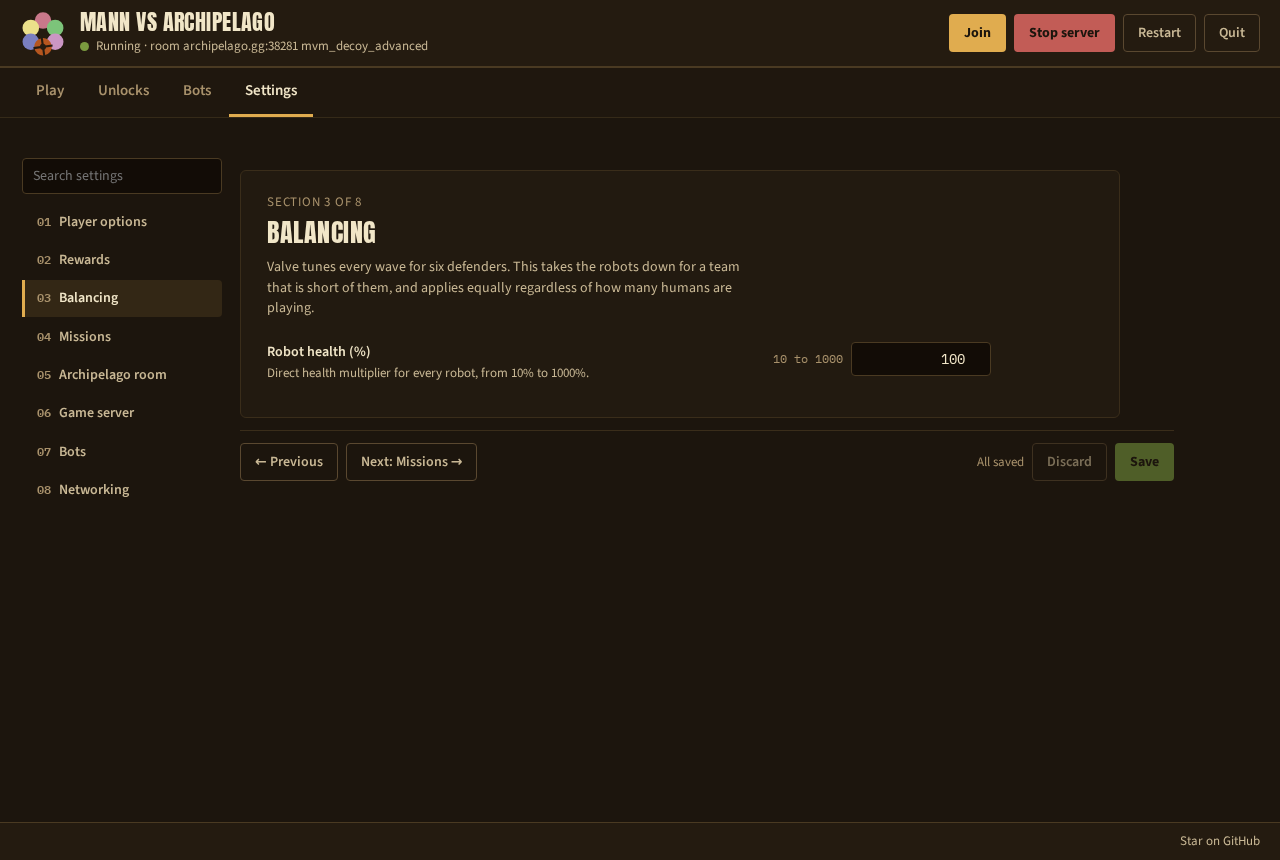
One row, Robot health (%). It scales the health of every robot, for a team that is short of six. It is a server setting, not a seed option, so it applies at the next map load. See A short team.
4. Missions
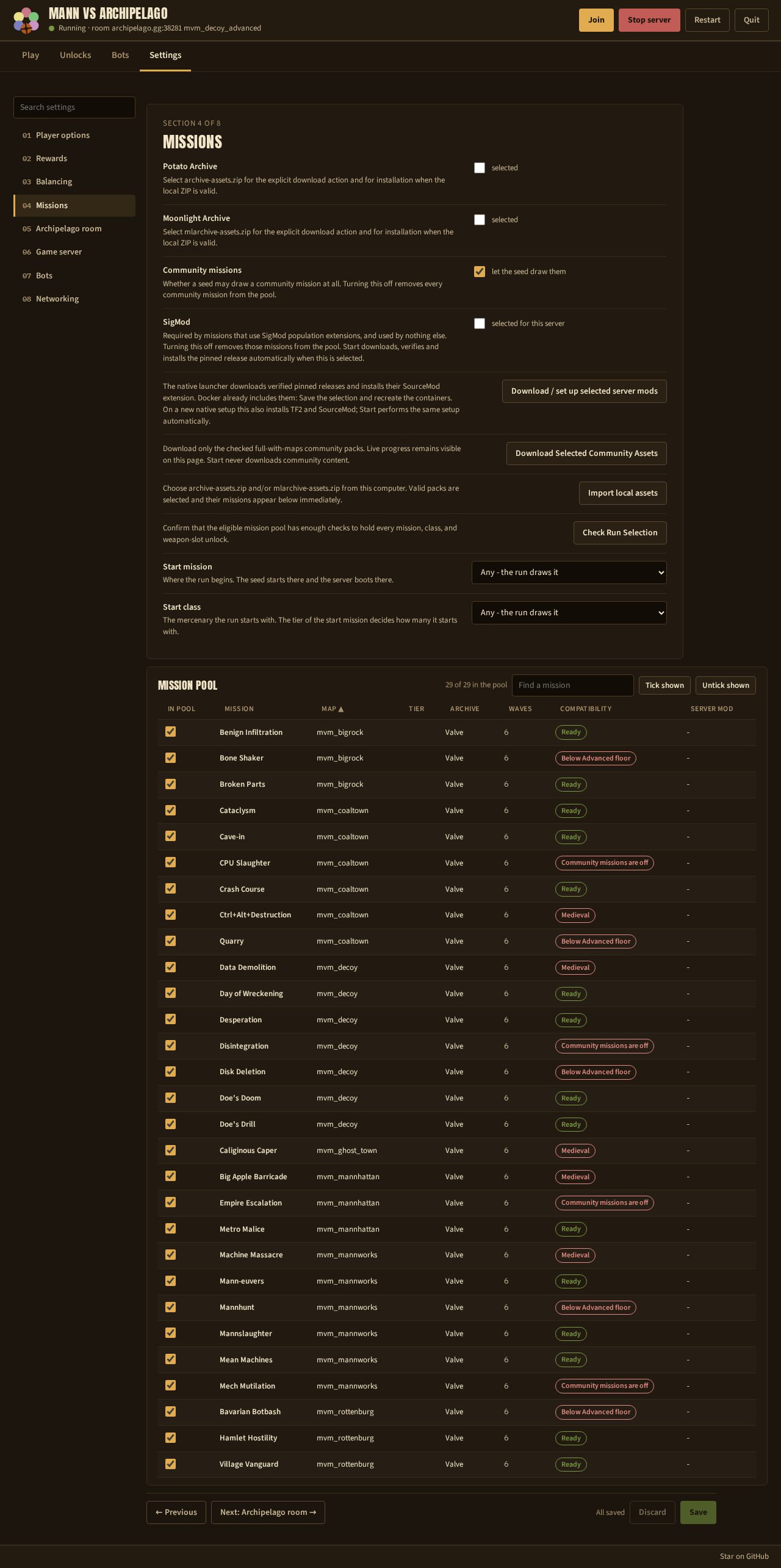
Which missions the seed can draw from, and where the run starts.
- Potato Archive and Moonlight Archive select the community asset packs. Download Selected Community Assets fetches them. Start never downloads community content on its own.
- Community missions lets the seed draw community missions at all.
- SigMod and the other server mods: choose off, only when a mission needs it, or always, on every mission. In the native launcher, press Download / set up selected server mods; in Docker, the image already includes the mod, so save the selection and recreate the containers. A mission that needs a mod stays out of the pool while that mod is off. On Windows, the row reads SigMod (unstable) because Windows runs this project's port rather than the mod's own release. See Run options.
- Check Run Selection tells you whether the pool holds enough checks for the items of the run. Press it before you generate.
- Start mission and Start class decide where the run begins.
- Mission pool is the table at the bottom: one row per mission, with a
tick to put it in the pool. Find a mission filters the table.
Tick shown and Untick shown act on the filtered rows. The
Compatibility column says why a mission cannot be drawn right now, for
example
Below Advanced floororCommunity missions are off.
See The missions.
5. Archipelago room
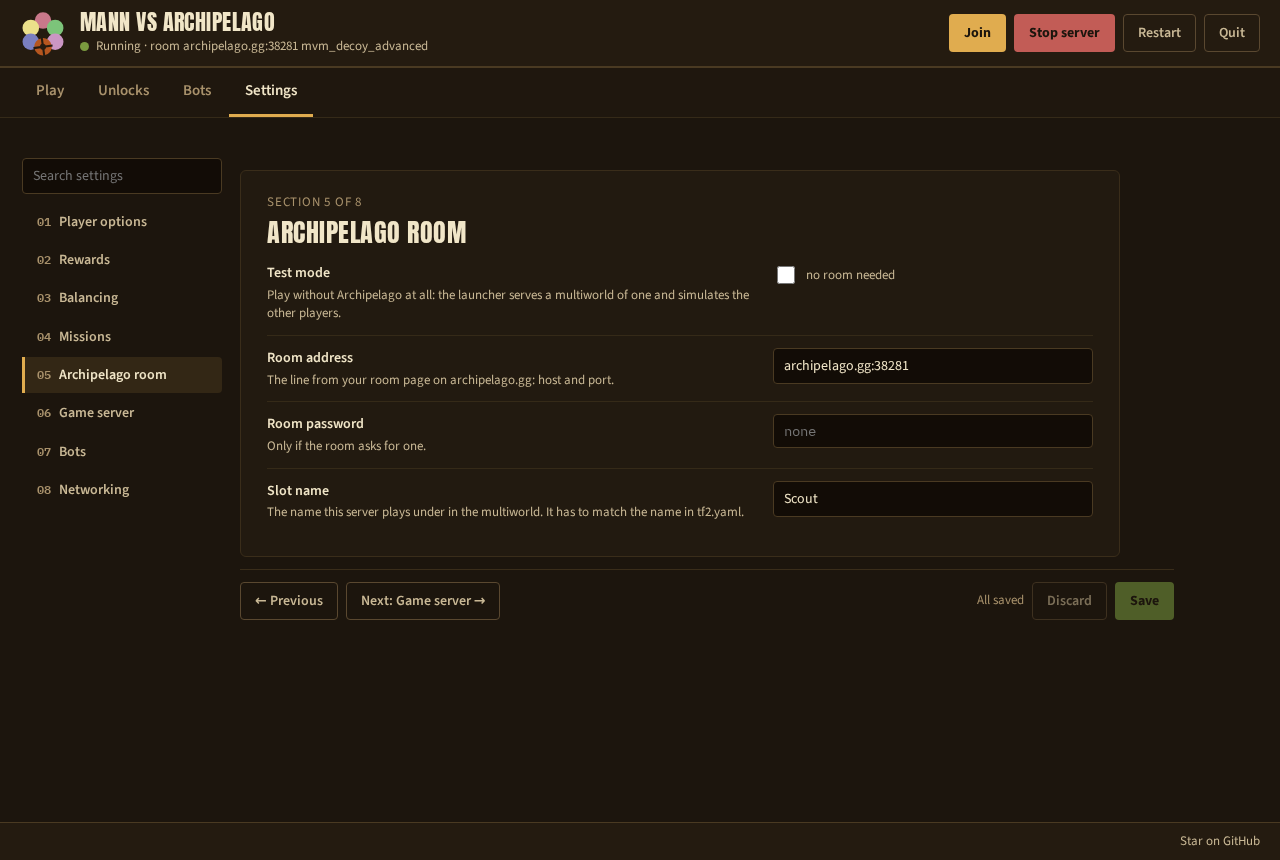
- Test mode plays without a room. The launcher fakes a multiworld of one.
- Room address is the line from the room page,
host:port. - Room password, only if the room asks for one.
- Slot name is the name of your server in the multiworld. It has to match
the
namein the player file.
See Create the session.
6. Game server
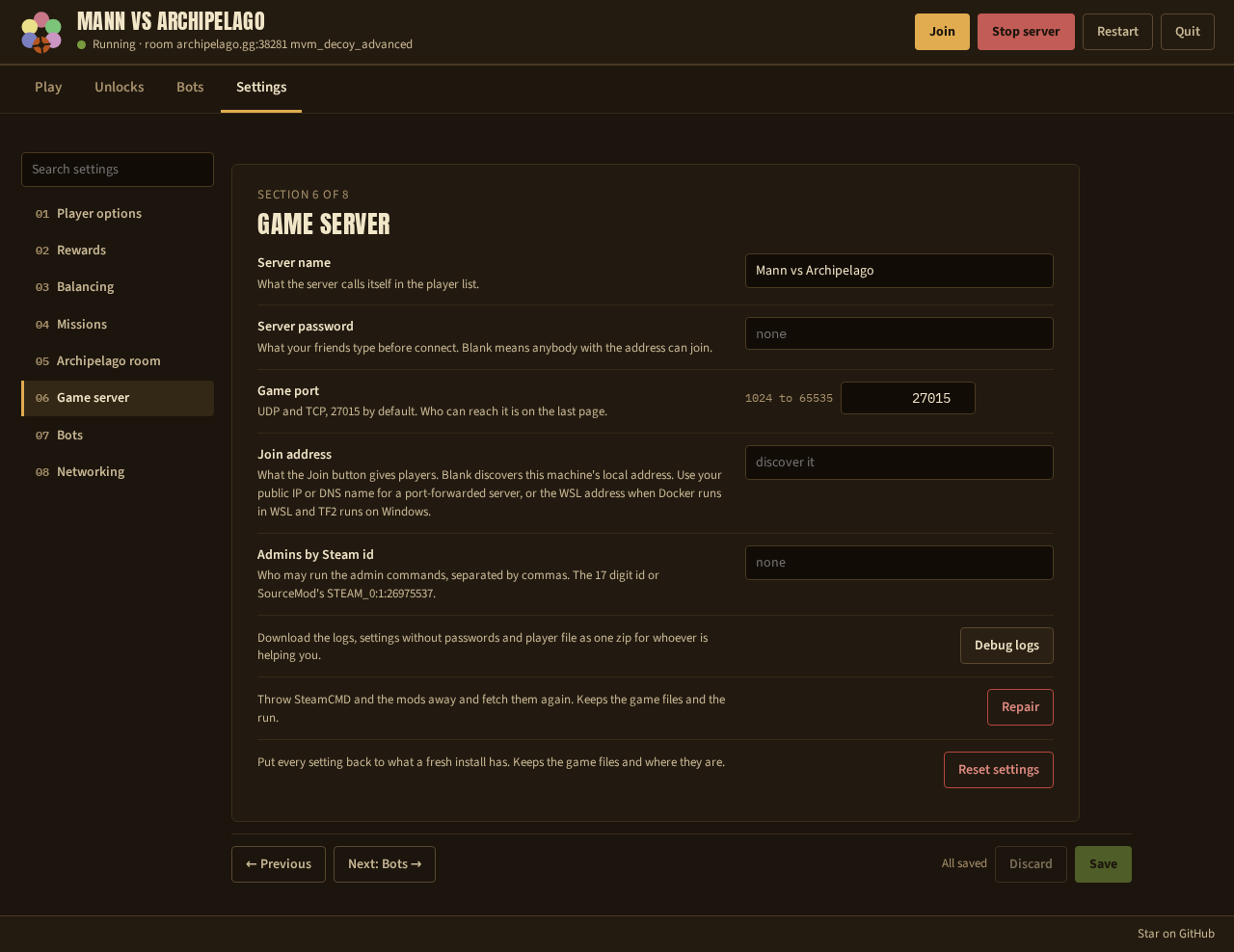
- Server name, Server password and Game port are what your friends see and type.
- Join address is the address on the Join line. Blank finds this machine's local address. Set your public address for a forwarded port.
- Admins by Steam id decides who can switch missions and bots from the chat. See Chat commands.
- Debug logs downloads the same zip as the button on the Play tab.
- Repair throws SteamCMD and the mods away and installs them again. It keeps the game files and the run.
- Reset settings puts every setting back to the defaults. It keeps the game files.
7. Bots
The Bots page has five sub-tabs.
Team
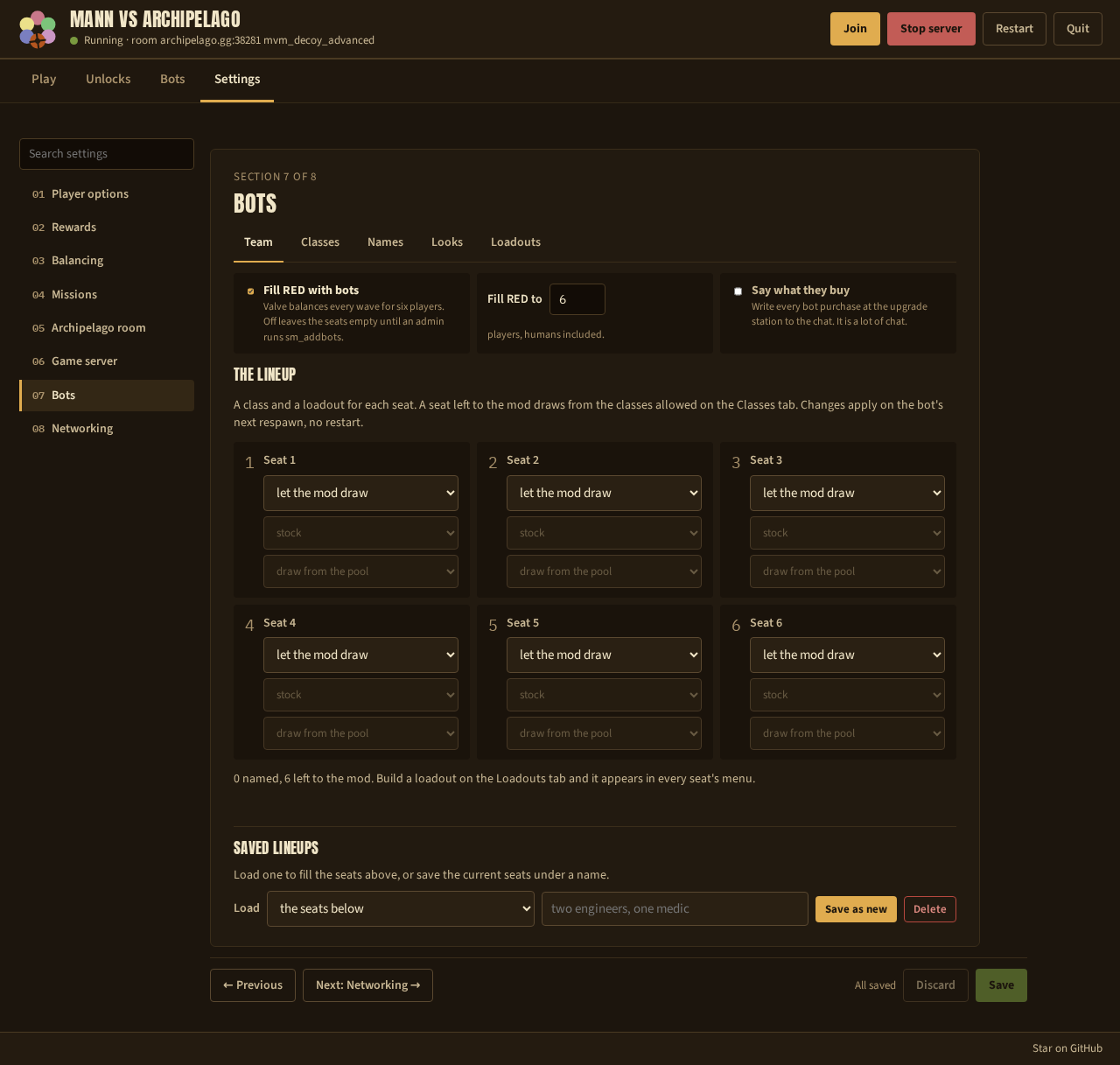
The same team as the Bots tab, saved as a setting. Use this page before the server starts, and the Bots tab while it runs.
Classes
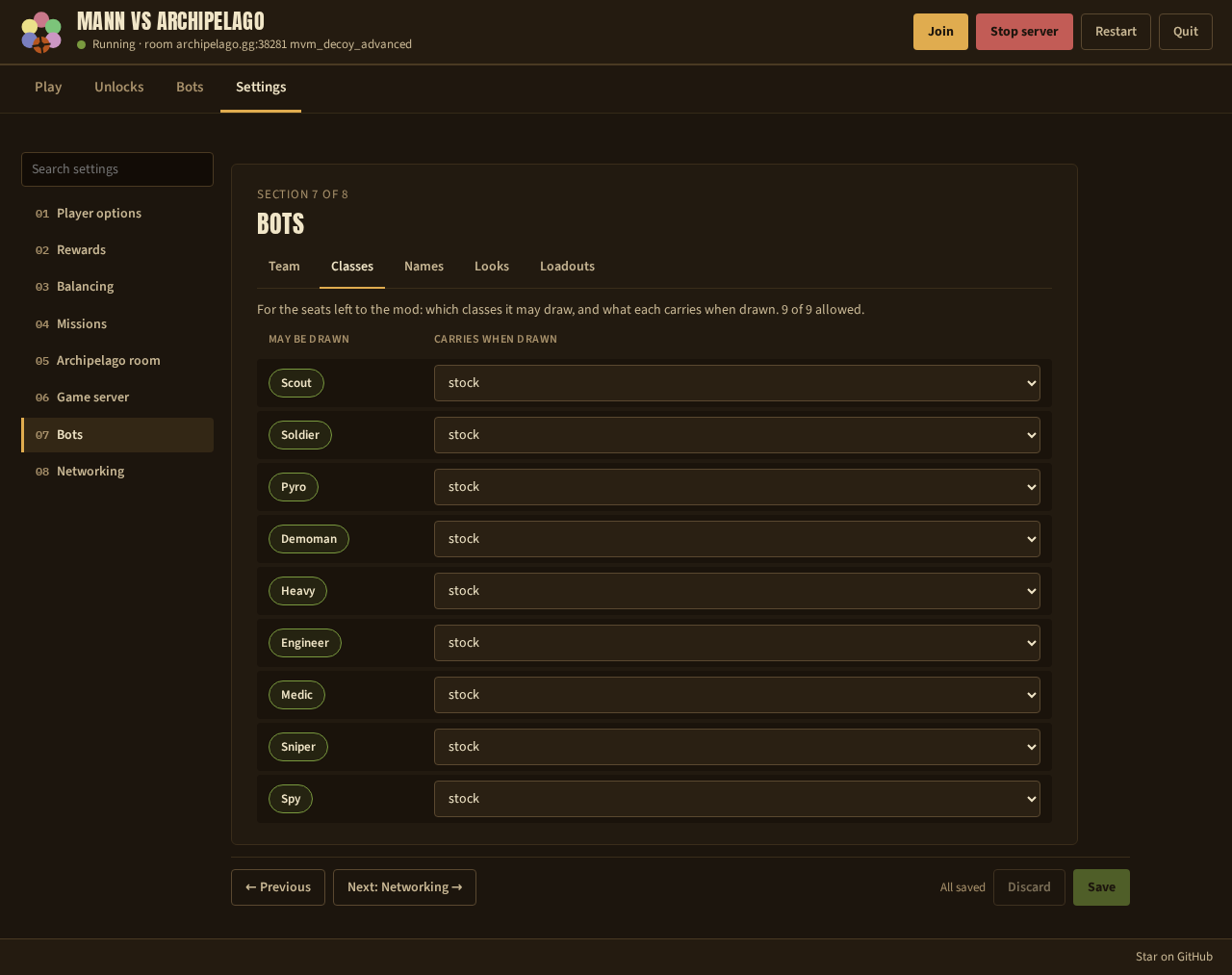
For the seats left to the mod: the classes it can draw, and what a bot of each class carries. Untick Sniper and Spy if you want the bots on the classes they play well.
Names
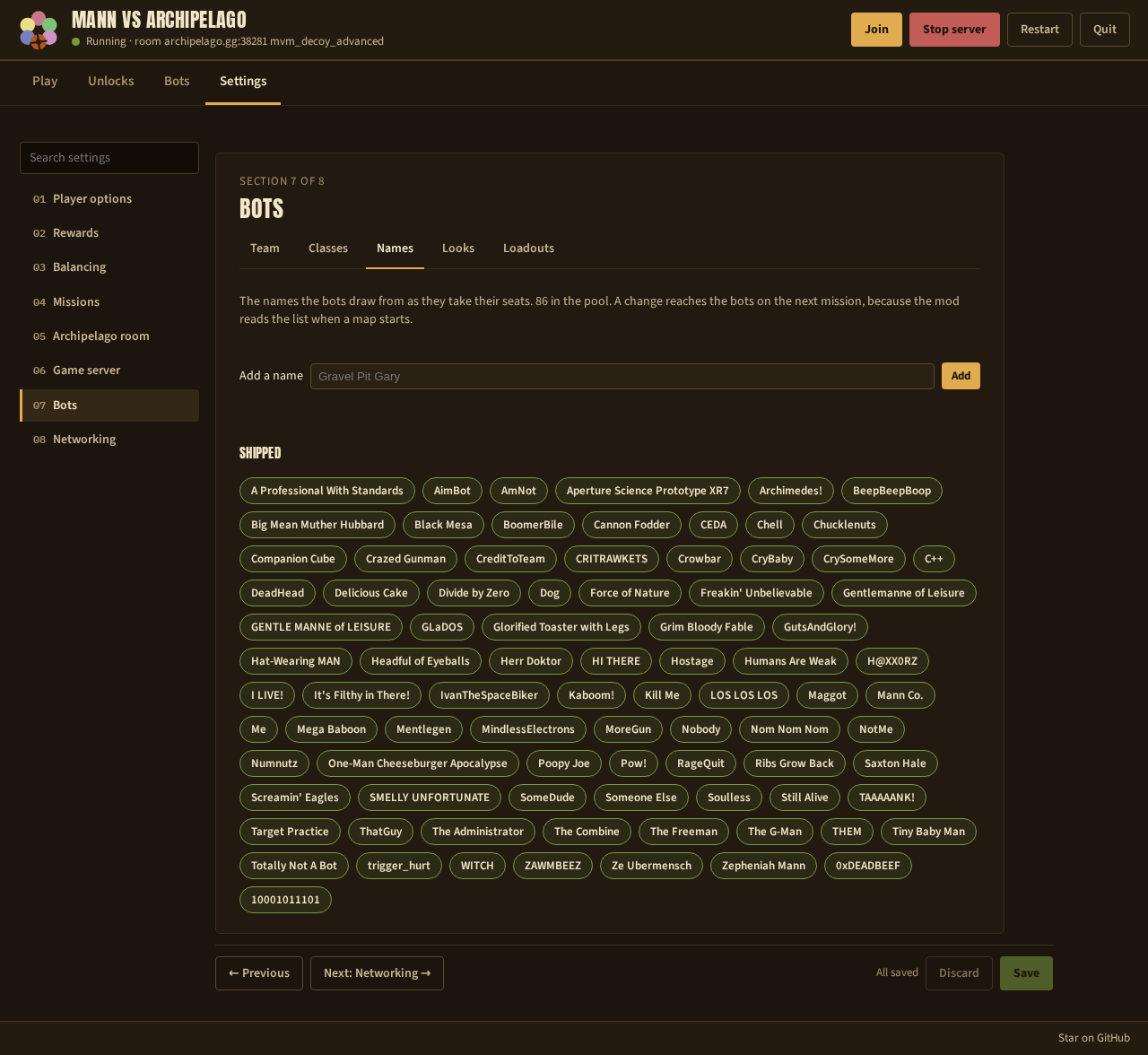
The names the bots take. Add a name puts one in the pool. Click a shipped name to leave it out. A change reaches the bots at the next mission.
Looks
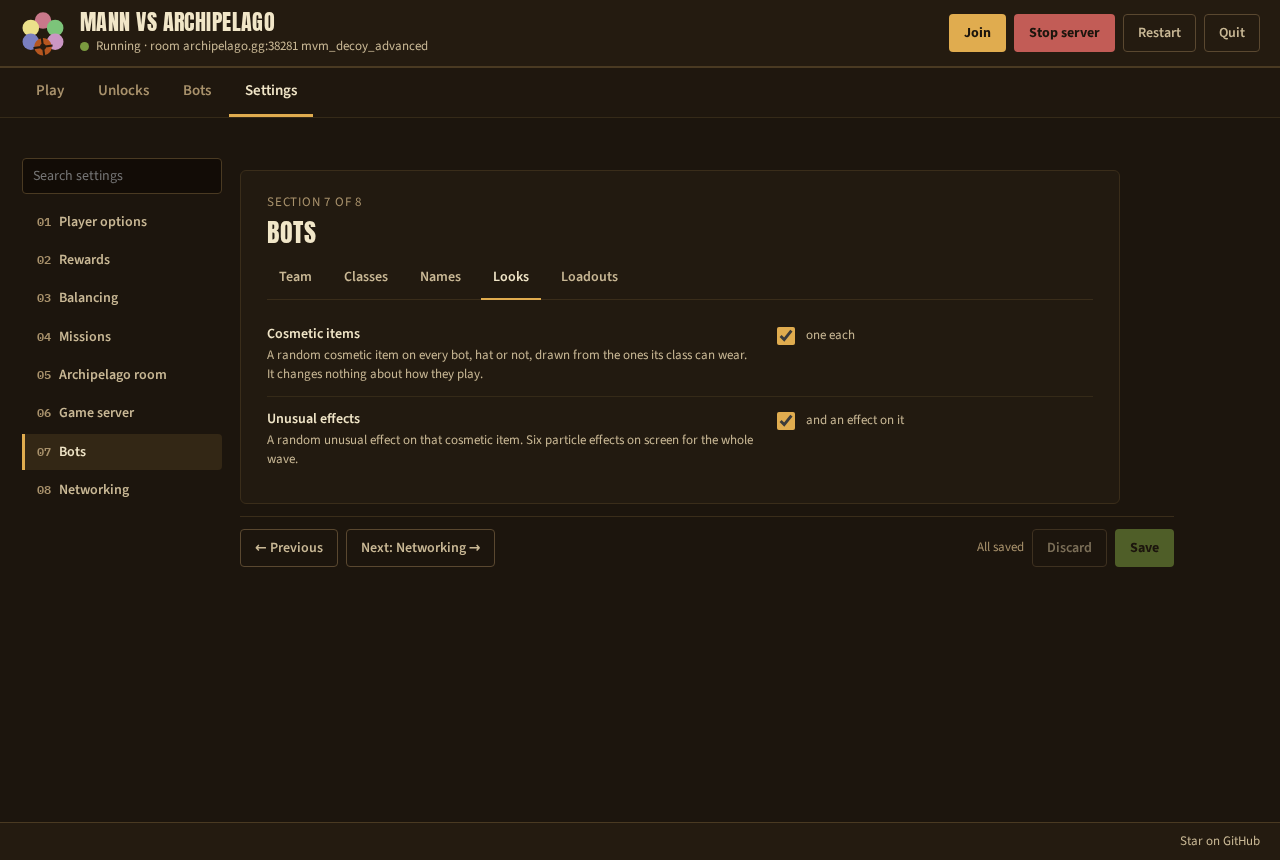
Cosmetic items gives every bot a random cosmetic its class can wear. Unusual effects adds a particle effect to it. Neither changes how a bot plays.
Loadouts
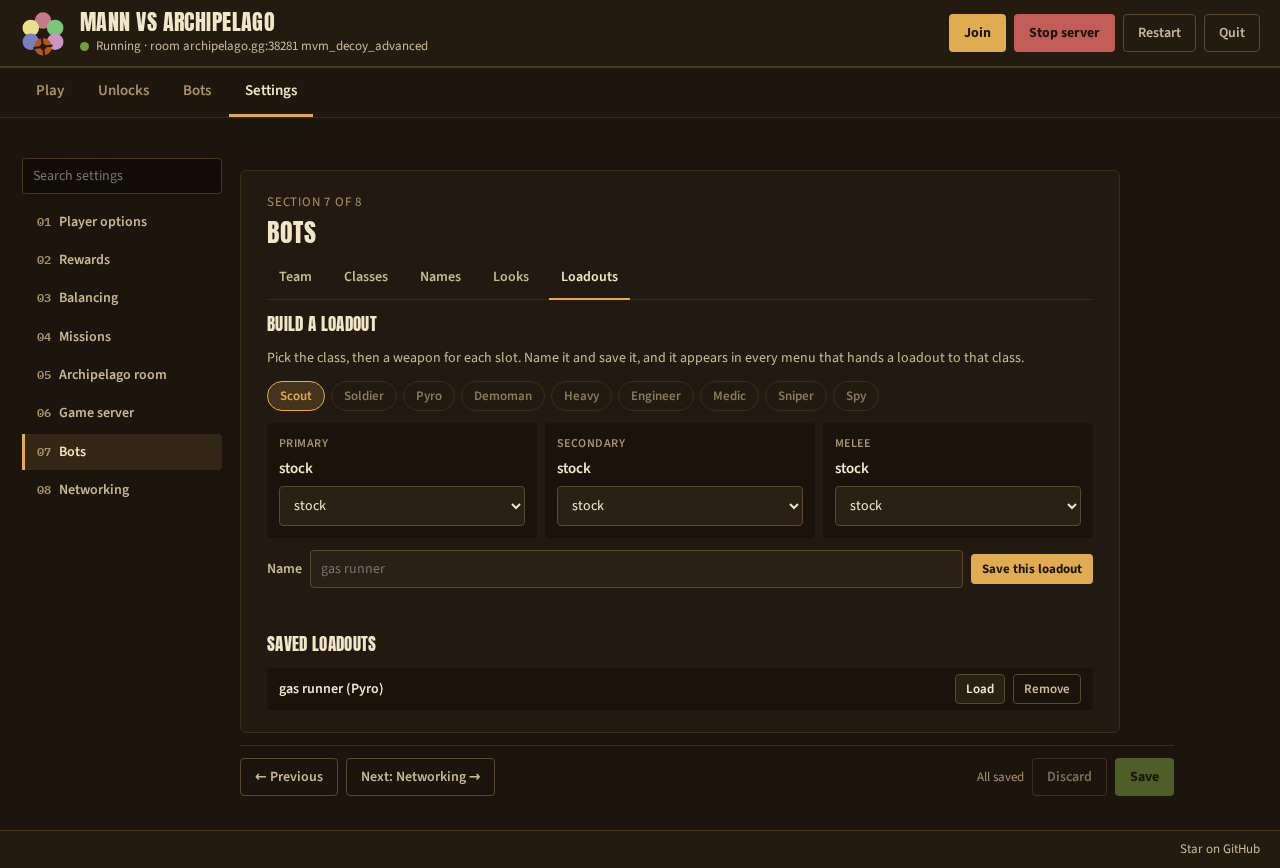
Build a loadout: pick a class, a weapon per slot, and a name. Save this loadout adds it to every menu that hands a loadout to that class. Saved loadouts lists the ones you built, with Load to edit one and Remove to delete it.
8. Networking
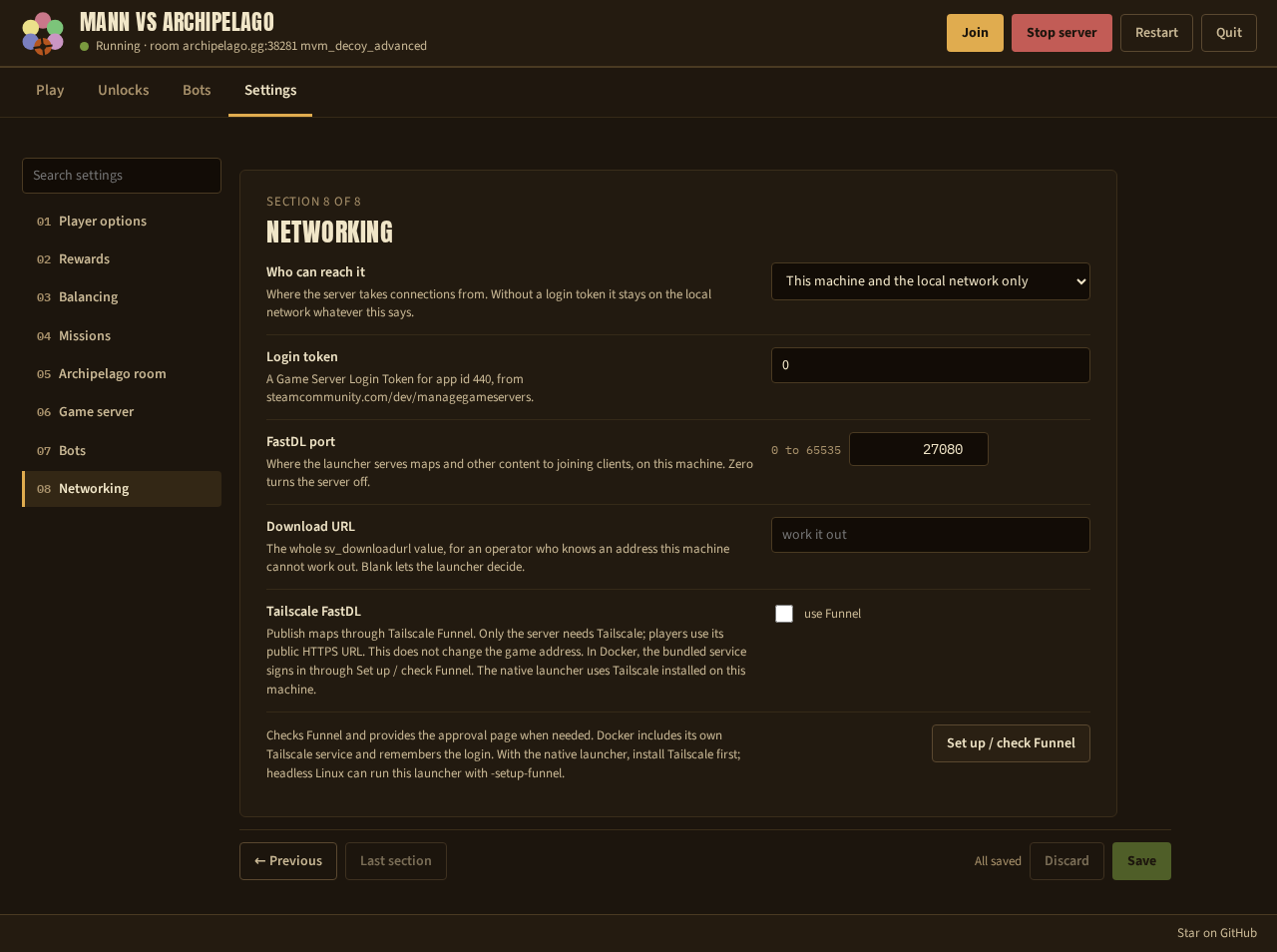
- Who can reach it: the local network, a forwarded port, or Steam's relay. See Invite your friends.
- Login token: the Steam game server token. Needed for anything but the local network.
- FastDL port and Download URL: where joining players download community maps from.
- Tailscale FastDL and Set up / check Funnel: publish those downloads through Tailscale. See Fast map downloads with Tailscale.
Next: Create the session.